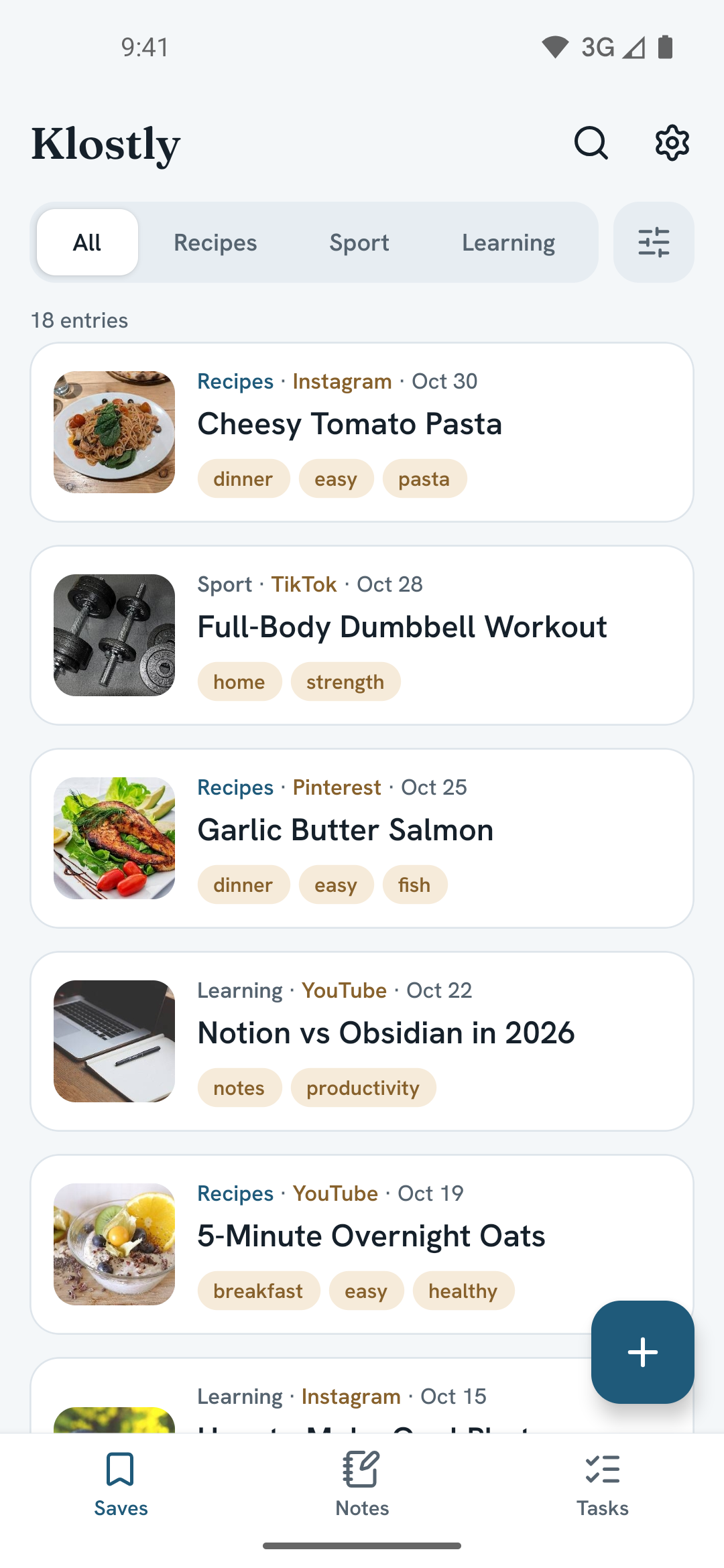
Choose your view
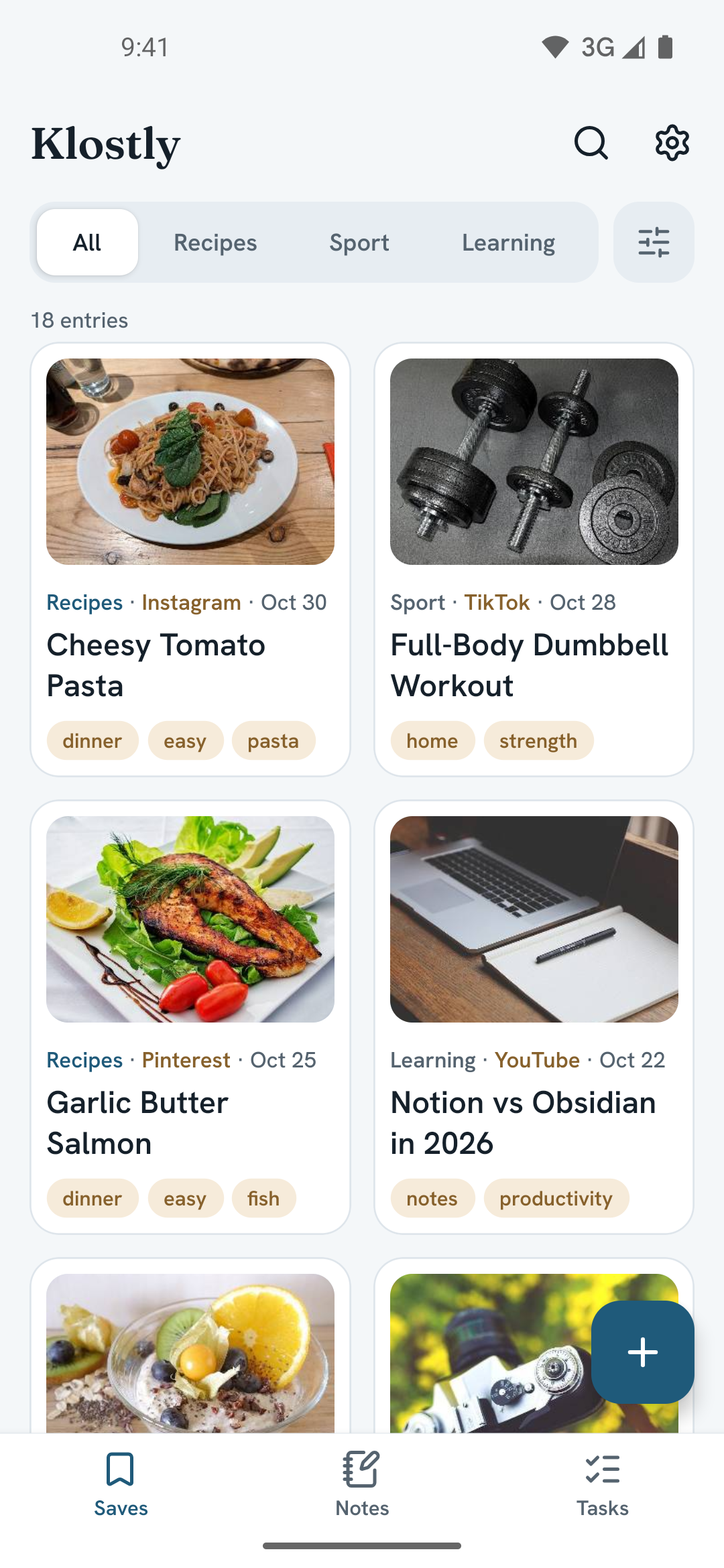
Switch between a visual grid and a compact list. Sort by newest, oldest, name or shelf.
 Klostly
Your personal library
Links you want to revisit. Ideas you want to develop. Plans you want to follow through. Bring them together in Klostly.
Not released yet. The Android beta is open now.
Android beta · open now
Klostly is in closed testing on Google Play. Send us the email of the Google account you use in Google Play, and we’ll add you to the test.
Android only for now. The iPhone version will follow after the Android release.
01 / Save & collect
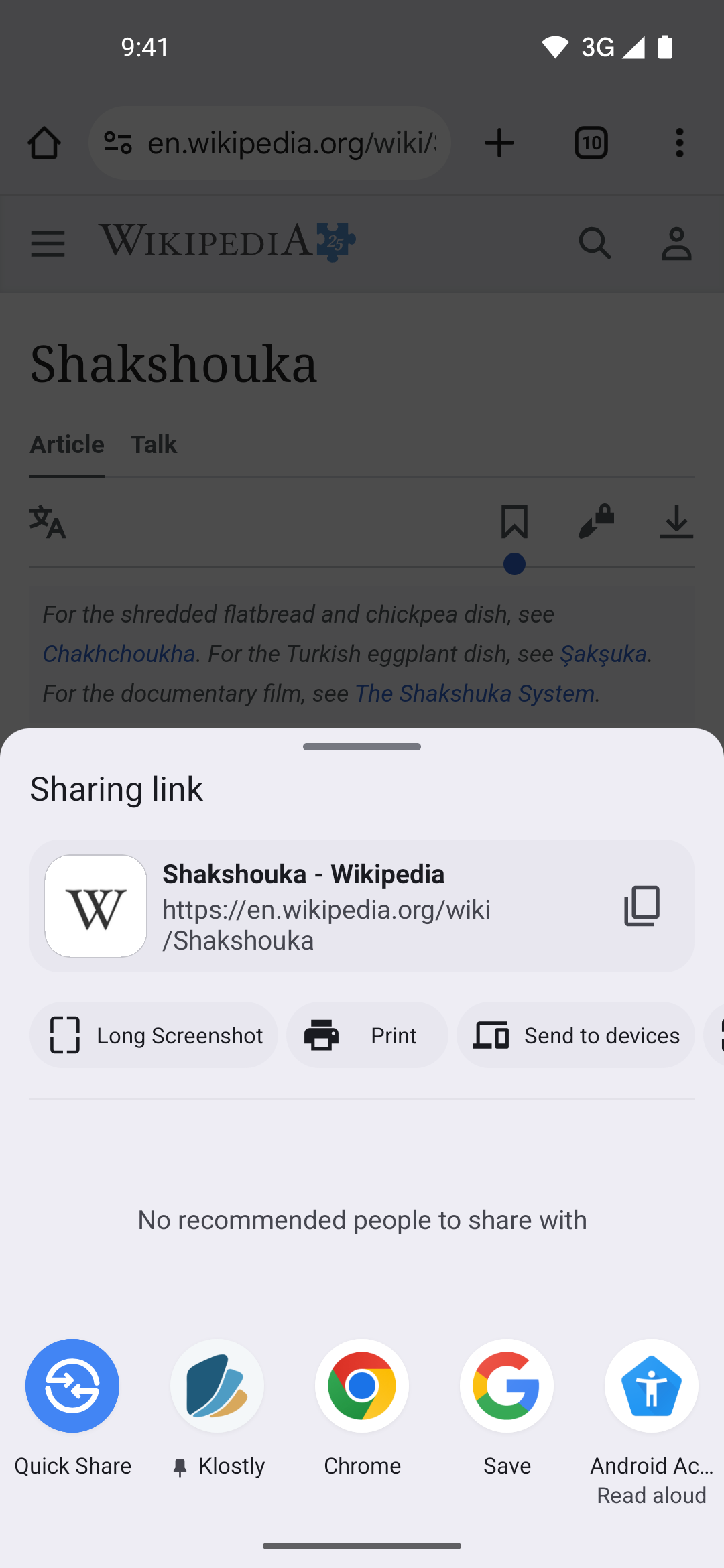
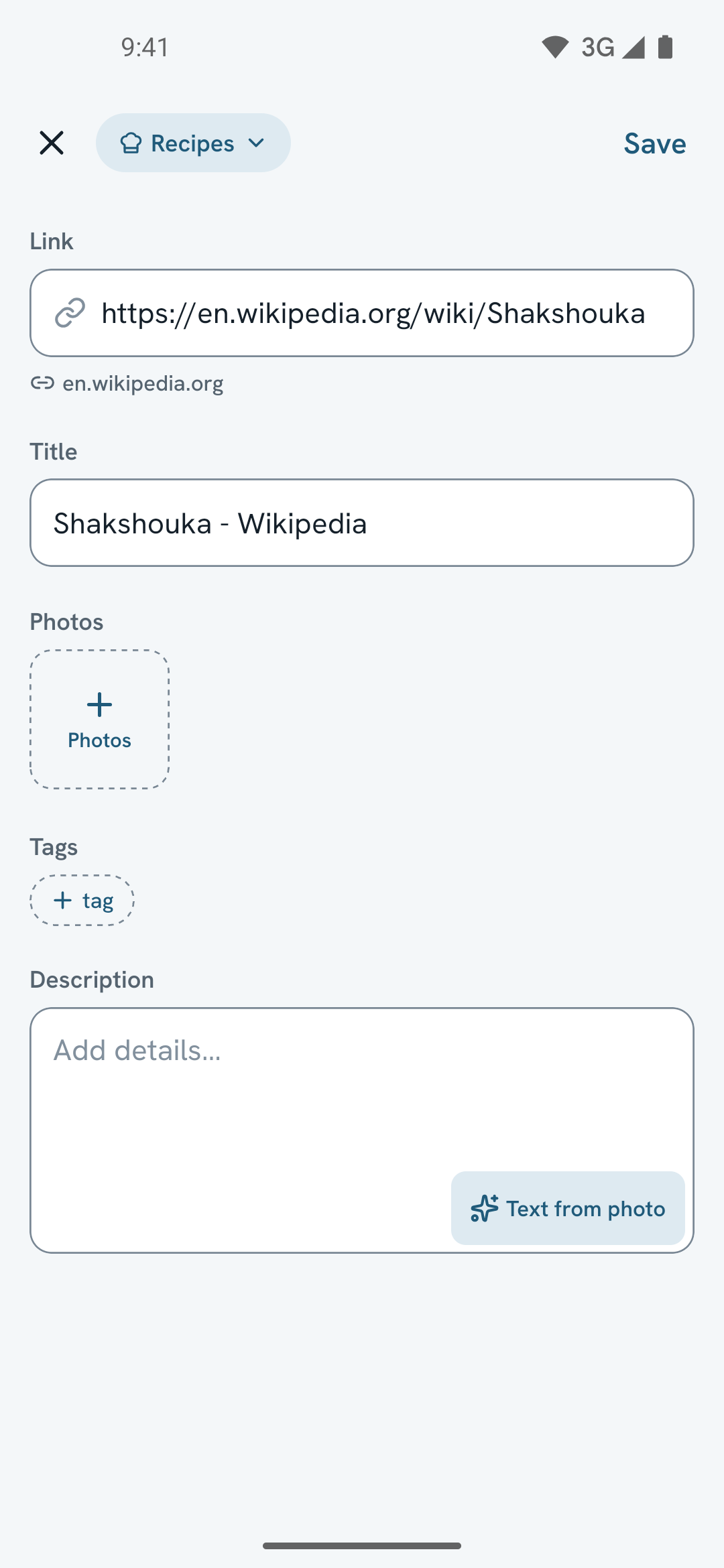
Bring a link or photo into Klostly using your phone’s Share menu. Choose a shelf and add the context that will make it useful later.
Useful when you come back
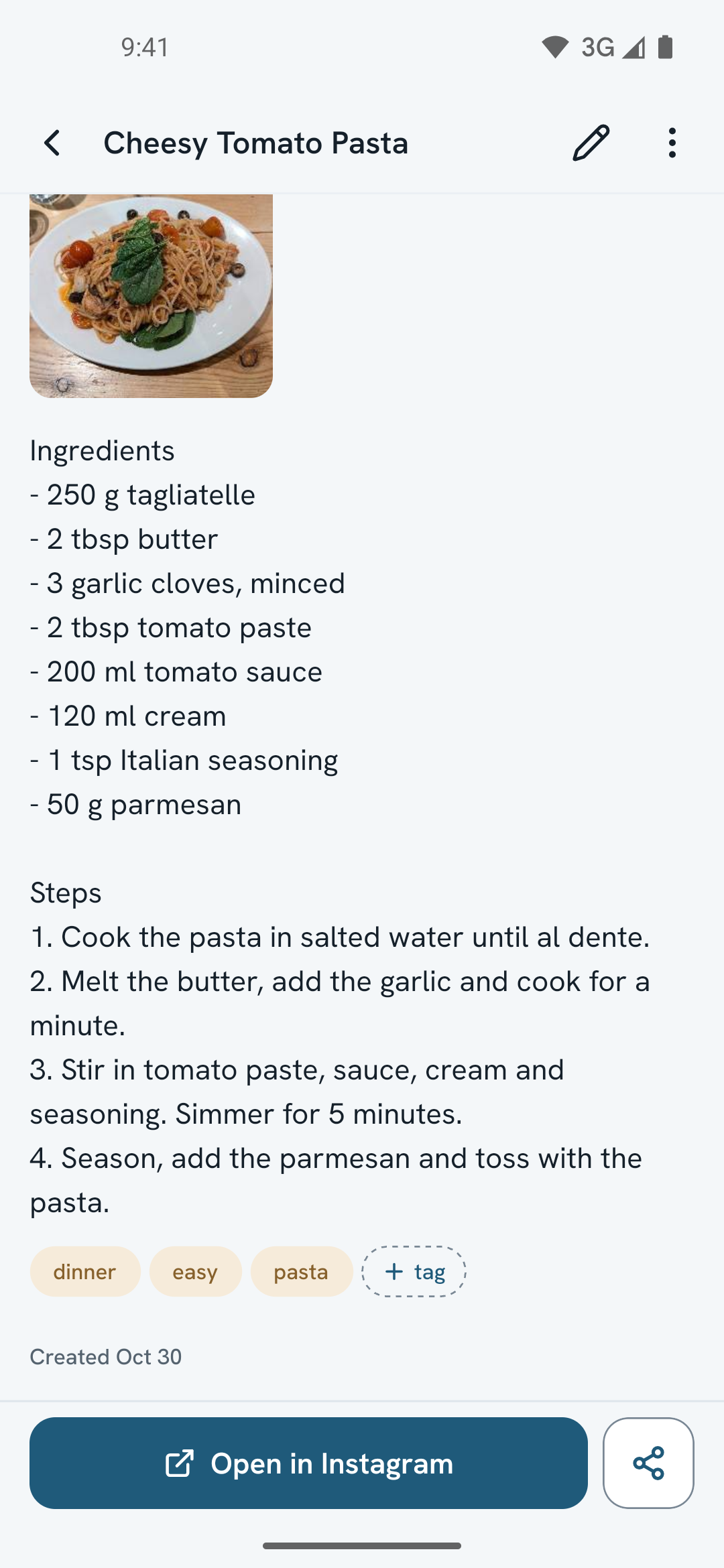
Add photos, text and the details you’ll need later, and keep them beside the original link. Everything you add stays in your local library and is available offline.
Klostly saves the link and everything you add yourself. The original post or video is not downloaded for offline viewing.
02 / Organise & find
Create shelves for your interests, use tags for the details, and choose the view that helps you browse. Your collection can grow without becoming hard to navigate.
Switch between a visual grid and a compact list. Sort by newest, oldest, name or shelf.
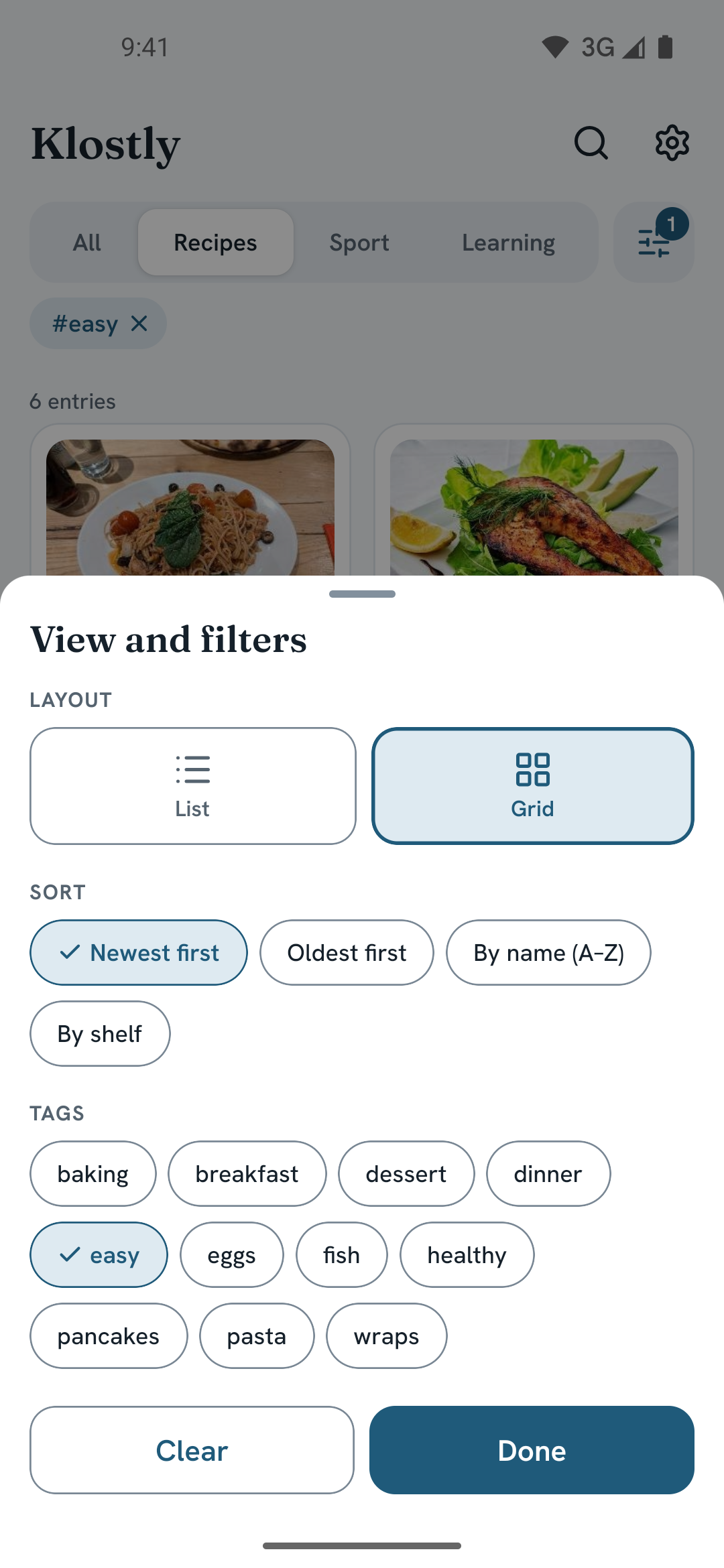
Open a shelf and filter by tags to see a smaller, more useful selection of your saves.
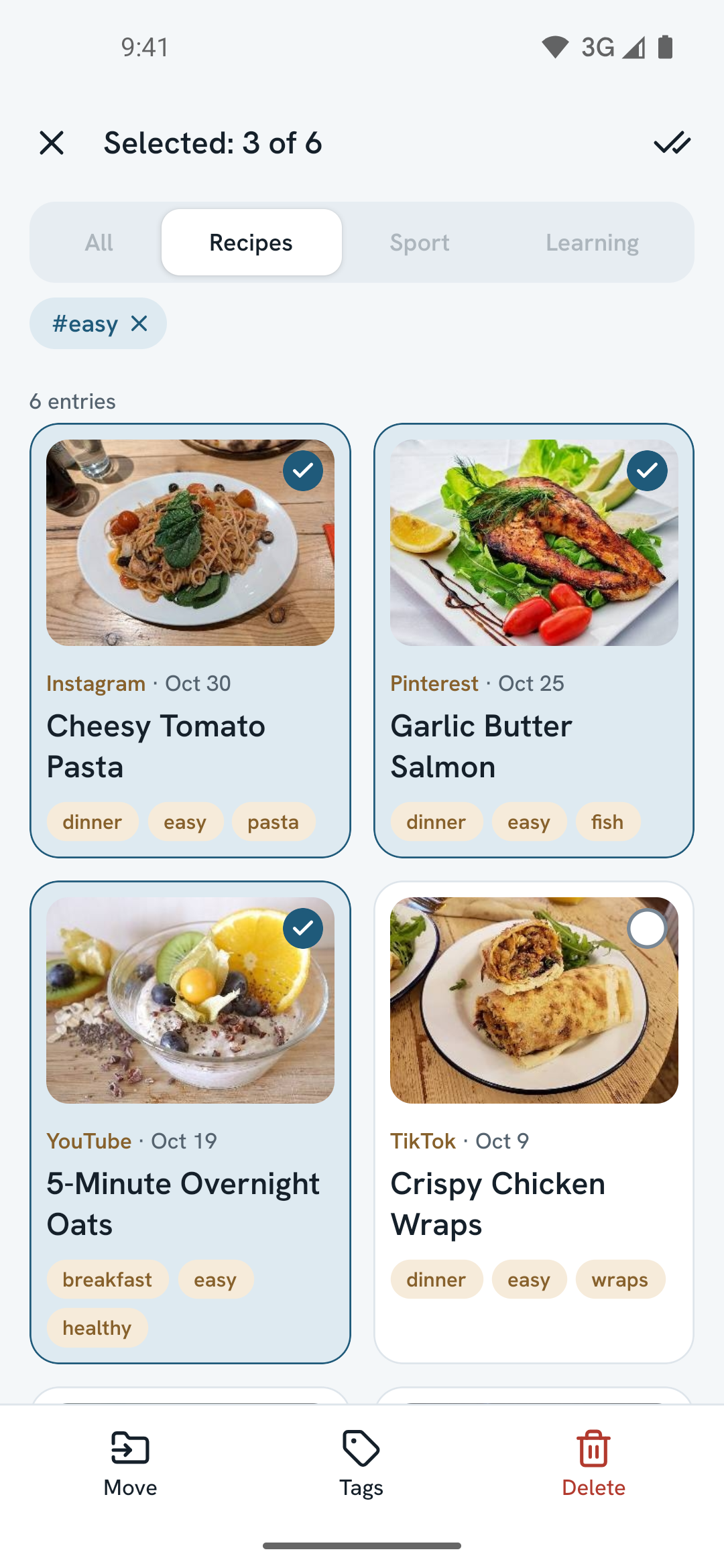
Select several entries to move them to another shelf, update their tags or delete them together.
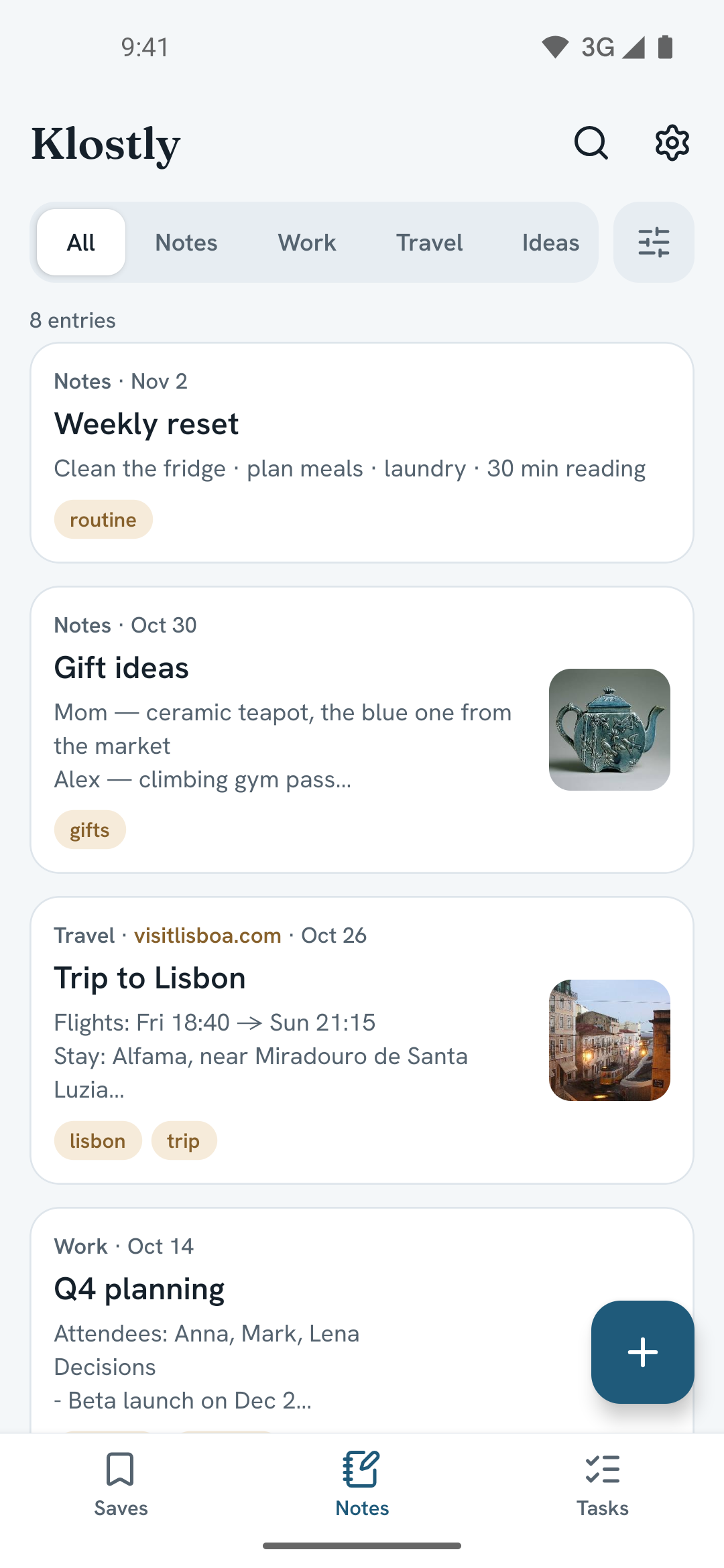
03 / Write & connect
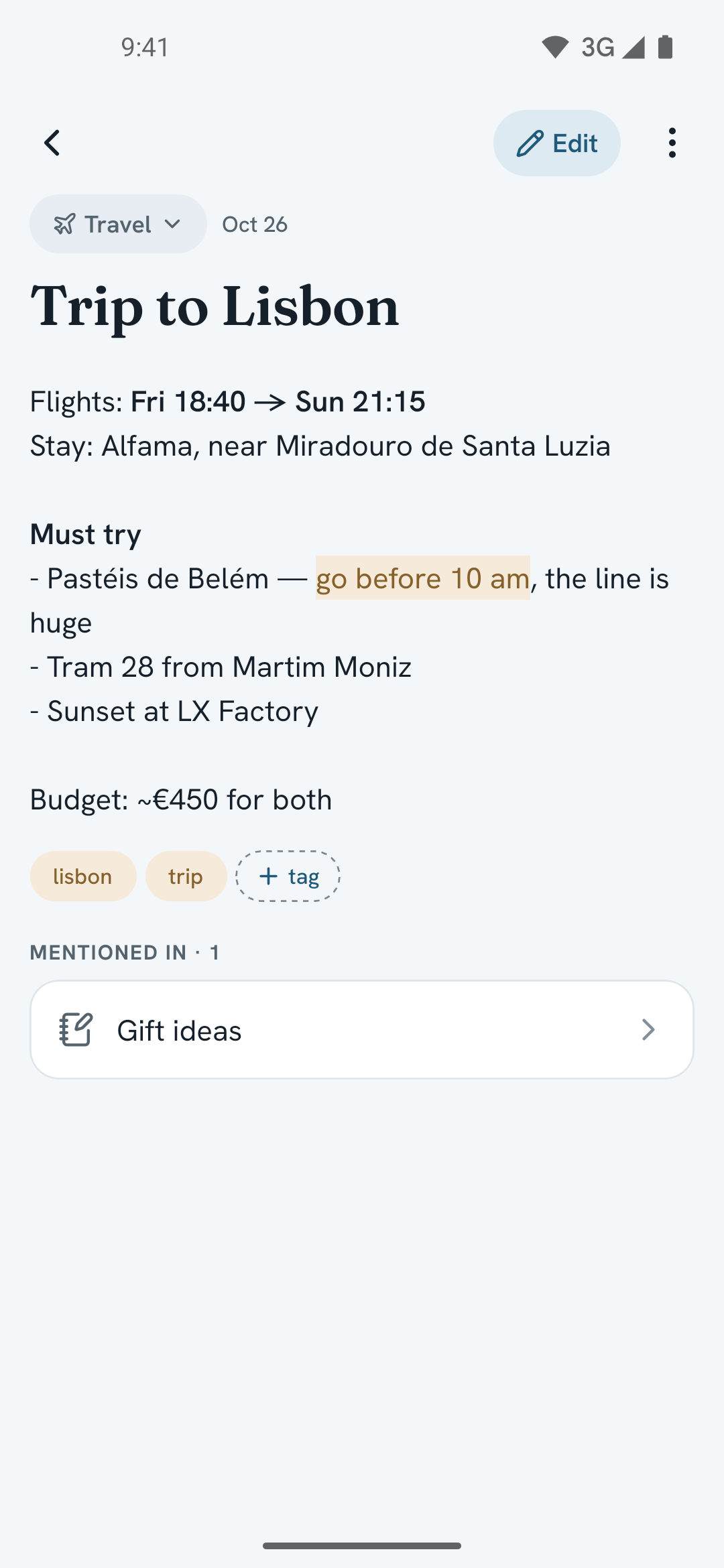
From a quick thought to a detailed plan: keep the details and the bigger picture in one place.
04 / Plan & do
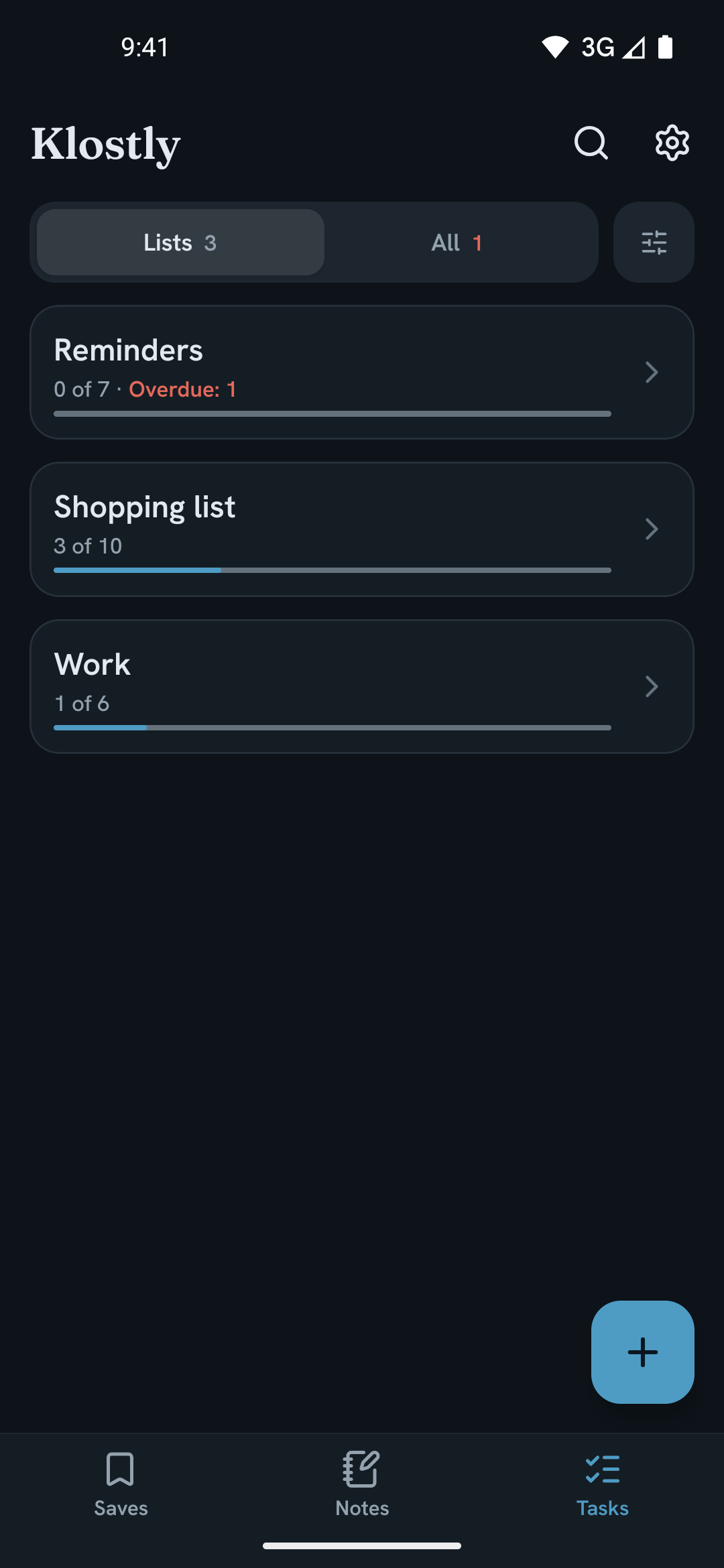
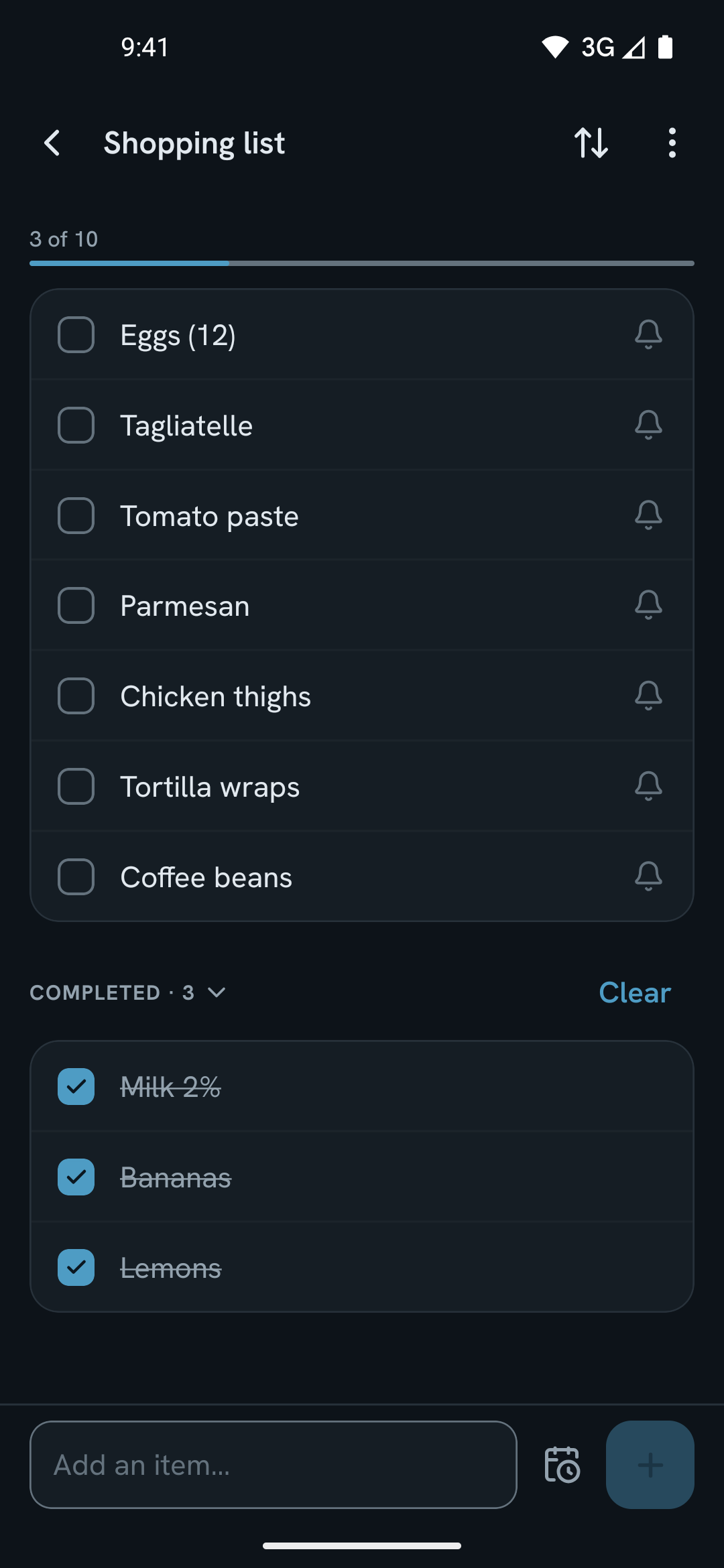
Split your to-dos into separate lists, track progress, set due dates and always know what comes next.
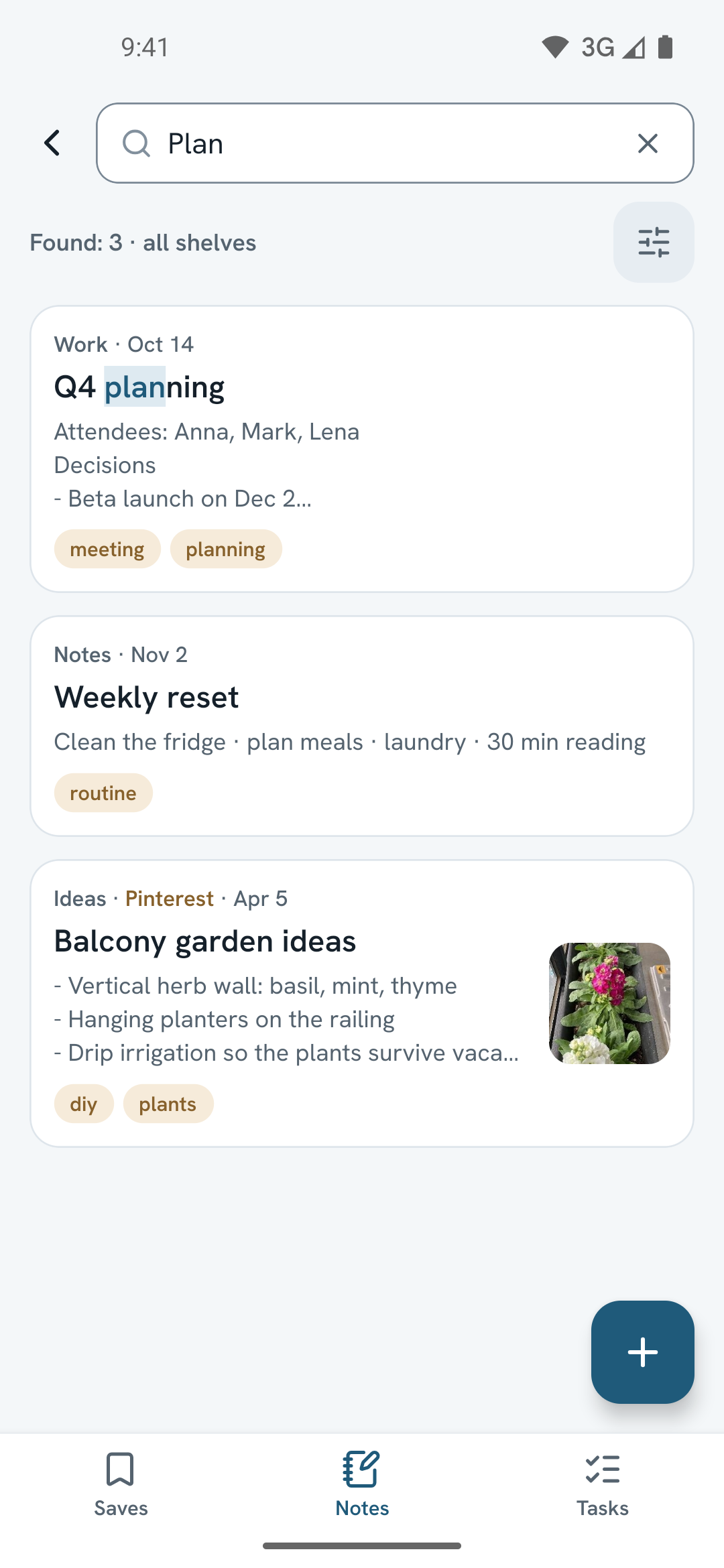
Search
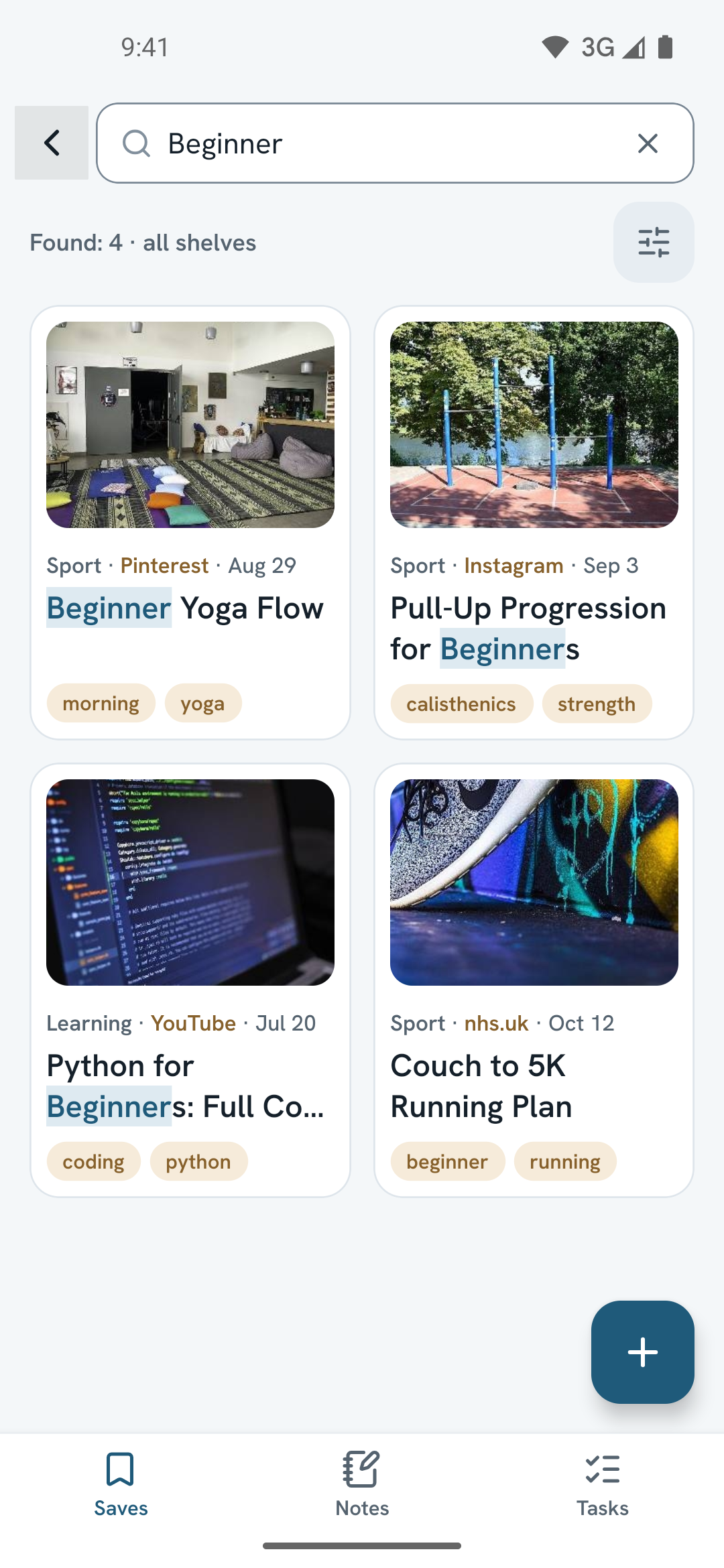
You don’t have to remember which shelf you used. Search within Saves or Notes across their shelves, with matching words highlighted in the results.
Private by default
Your local library works without an account or an internet connection. Read what you’ve kept, add a note or manage a list wherever you are.
Read the Privacy PolicyLocal saves, notes, attached photos and tasks stay with you. Opening original websites and using online features still needs a connection.
Your collection is a personal space, free of advertising.
Use Export / import in Settings to save an archive of your library and import it back into Klostly.
Share a web link or photo using your phone’s Share menu and choose Klostly. You can also add entries yourself. Saved entries can include a title, description, photos, tags and the original source link. Klostly does not download the original social post or video.
No. The local library works without signing in. Account and cloud features are separate, and signing in alone does not upload your library. The Privacy Policy explains optional online features and how they handle data.
You can use your locally stored saves, notes, attached photos and tasks offline. Opening original links, cloud features, text extraction and sending feedback need an internet connection.
Yes. Open Export / import in Settings to create a library archive. You can keep it as a backup or import it into Klostly. Store the archive somewhere you trust.
Yes. In Settings, choose a light, dark or system theme.
Use “Write to us” in the app, the form below or email klostlysupport@gmail.com. To remove an account, follow the account deletion guide.
Write to us
Questions, feedback or an idea for the app? Messages go straight to the Klostly team.
Prefer email? klostlysupport@gmail.com